
Curl CDE Installation Notes
These are the installation notes for the Curl Development Tools for Eclipse (CDE), part of the Curl RTE/IDE 8.0.x/8.0.100x Release.
Before Installing the CDE
If you haven't yet installed Eclipse, please follow the instructions provided below:
Installing Eclipse
We have tested the CDE plugin only with Java 1.7.
 The Curl
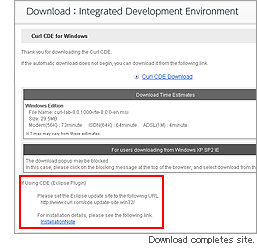
RTE, IDE and CDE can be installed from an Eclipse update site. In Eclipse, the
CDE (7.0.1005 and up) is installable from an Eclipse P2 repository, which can be
done by creating a new repository site. Information on the update site is
available on the page displayed after the download completes; please see that
page for additional details.
The Curl
RTE, IDE and CDE can be installed from an Eclipse update site. In Eclipse, the
CDE (7.0.1005 and up) is installable from an Eclipse P2 repository, which can be
done by creating a new repository site. Information on the update site is
available on the page displayed after the download completes; please see that
page for additional details.
The update site includes the Eclipse plug-in as well as the native installer for the Curl RTE and IDE. This native installer is managed by the CDE plug-in.
Prior to following the instructions in this note, it is expected you have installed a compatible Eclipse bundle (minimum Eclipse 3.7.2). It is also expected that you also have a compatible JVM installed (we recommend Oracle (previously Sun) JDK 1.7+).
First Time CDE installation
- Start Eclipse
- Select the menu item "Help/Install new Software..."
- In the "Work with" input field, type the repository URL of CDE on a supported Windows OS. (if you are not sure about the URL for the CDE repository please Click here to send your request for the URL)
- The list of items should update and present all the features
available as a tree (make sure the "Group items by category" checkbox in the
bottom of the dialog is checked:
- Curl Development Environment
- Curl Development Environment (English)
- Curl Development Environment (Japanese)
- Curl Development Environment (Korean)
- Curl Development Environment - Memory Analyser
- Curl Development Environment - UML Tools
http://download.eclipse.org/modeling/m2t/updates/releases/
http://download.eclipse.org/modeling/mdt/updates/releases/
- Curl Development Environment
- Click the "Next>" button to review your choices.
- Click the "Next>" button to read and accept the license(s).
- Click the "Finish" button.
- A dialog with a progress bar displays that the installation is in progress. You can safely click the "run in background" button if you wish.
- When the download is complete, you'll be instructed to restart Eclipse. Note that at this point the Curl native installer has not run yet.
- When Eclipse restarts you can verify that CDE has been installed using the menu "Help/About Eclipse SDK". The Curl green and blue icon should be displayed. You can review the details of the installed Curl features by clicking the "Installation details". Note that the "Installation Details" dialog is also the means by which you can uninstall CDE.
- As soon as you use a CDE feature, e.g. open the Curl perspective, the CDE plug-in will start automatically.
- The first time CDE starts after its installation (and after restarting Eclipse, see above), it verifies that a compatible Curl RTE+IDE native installation is available. Assuming it's not the case you'll see a series of dialogs detailing the steps.
- The steps consist of launching the Curl native installer that was downloaded previously along with the Curl plug-in. We recommend that you use all the default options of this native installer.
- The execution of the Curl native installer may take a while. Don't restart Eclipse during that period. Until the native installation is complete no Curl related commands in Eclipse are functional.
- Once the curl native installer has completed, CDE becomes fully functional.
- You may want to open the Eclipse "Error Log" if you suspect an issue. You should see a log entry like "CDE startup: IPC versions matched". Note that since the native installer may take a while to complete, make you "OK" all the dialogs from the Curl native installer, these can easily be hidden by the Eclipse window if you activate it.
- If you are a first time CDE user you may find it
useful to open the CDE overview and tutorial help material:
- select Eclipse menu "Help/Help Contents"
- when the Eclipse help windows opens, select "Curl Development User Guide".
Updating CDE installation from older CDE(7.0.1004 or earlier)
It is recommended to uninstall your existing old CDE installation before installing this CDE (8.0.100x/8.0.300x).
Updating CDE (7.0.1005 and up) installation
Select Eclipse menu "Help/Check for updates" to simply ensure you have the latest released version of the plug-in you have currently installed and follow the instructions. Note that updating CDE will lead you to basically the same steps as described above (including running the Curl native installer after Eclipse restarts).
The Curl plugin is now installed!
Choose "Window / Open Perspective / Other..."; select Curl and click OK to open the Curl perspective.
Curl IDE Installation Notes
Curl Integrated Development Environment (IDE)
Windows®
Before you Install
Make sure that your computer conforms to the following requirements before installing or upgrading the Curl Runtime Environment or the Curl IDE:
-
Check the System Requirements for the RTE or IDE.
- Disable any anti-virus software on your computer. You can enable your anti-virus software after installation.
- If your operating system is Windows® , you must have administrator privileges.
- Download and run either the RTE or IDE installer. If you have another version, the newer version will be installed along with any previous version on your computer. If you are upgrading the Curl IDE, make sure to download and install the newer version of the Curl IDE, not the Curl Runtime Environment. The Curl Runtime Environment installer will not upgrade the Curl IDE.
Known Problems
Installation on Vista without VB Script registered will fail with error code 2738
On Vista, if vbscript.dll is not registered, you will get an error running the msi installer. The installer will stop as it is 'Preparing the installation'; the error code will be 2738. The solution to this problem is to register vbscript.dll. To register this dll, at a command prompt, run:
C:\WINDOWS\system32\REGSVR32.EXE VBSCRIPT.DLL
You will see a dialog indicating that the registration was successful.
Installer thinks the Curl Runtime Environment or the Curl IDE is already installed after aborted install.
If you start installing the Curl Runtime Environment and click Cancel to abort the installation before it is complete, subsequent installation attempts may find that the Curl Runtime Environment is already installed even though it is not. You may ignore this message and continue reinstalling the Curl Runtime Environment or the Curl IDE.
Inconsistent localization settings on Vista can cause our Japanese installer to fail when the locale is English.
If your operating system is Windows® Vista and you have your locale set to English but 'format' set to Japanese, the Japanese Curl installer will give a Transcoding Exception.
To fix this problem, set both your locale and format to Japanese to use the Japanese installer or both to English to use the English installer.
IDE cannot be started when locale does not match
The Japanese-only IDE product (e.g.: curl-lab-8.0.1000-rte-8.0.0-ja.msi) installs only Japanese documentation and supports for the ja locale.
If you require RTE support for the en locale, please install one of the RTE products also (curl-rte-8.0.0-en.msi, for example).
Uninstalling the Curl Runtime Environment or the Curl IDE
If you find a reason to uninstall the Curl Runtime Environment or the Curl IDE choose Start > Settings > Control Panel > Add/Remove Programs > Curl IDE > Change/Remove.
If you wish to reinstall the Curl Runtime Environment or the Curl IDE, make sure to reboot your computer before doing so. Windows® users must have administrator privileges to uninstall the Curl Runtime Environment or the Curl IDE.


